How to Install Apps
with Yai Manager
如何使用
Yai Manager
安装应用
A complete step-by-step guide to finding, downloading, and installing applications
using the Yai
Manager.
查找、下载和安装应用程序的完整分步指南。
Open Yai Store
打开 Yai
Store
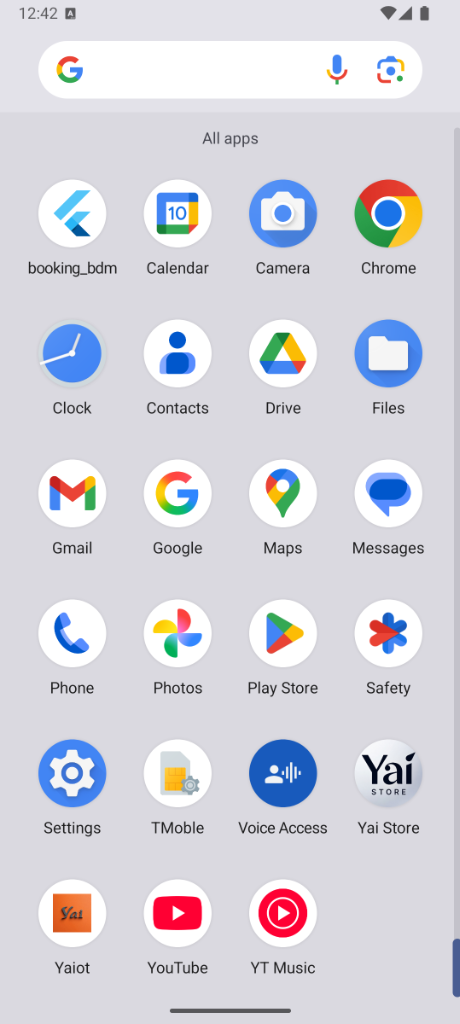
Locate and tap the Yai Store app icon on your device.
You can find it in your app drawer or on your home screen.
在您的设备上找到并点击 Yai Store 应用图标。
您可以在应用抽屉或主屏幕上找到它。
Permission Required
需要权限
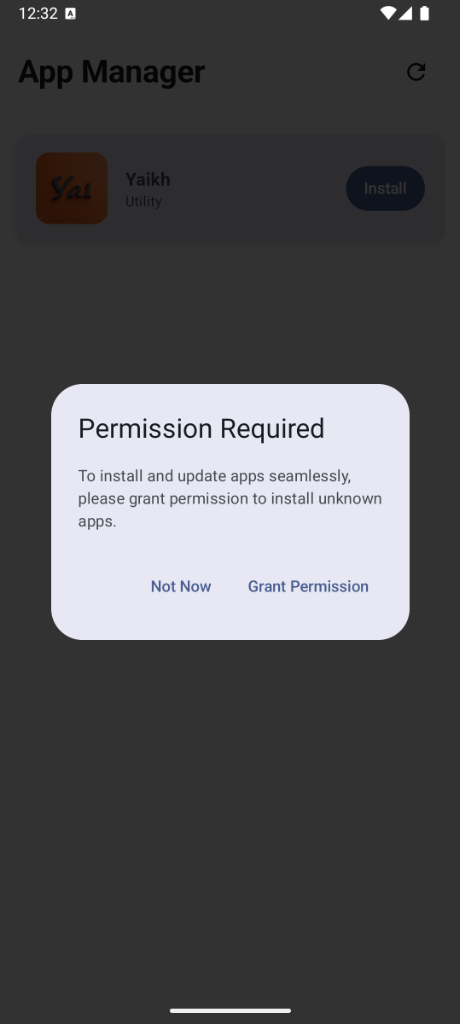
When you tap Install, you may see a permission dialog asking to grant permission to install
unknown apps.
Tap Grant Permission to proceed.
当您点击安装时,可能会看到请求授予安装未知应用权限的对话框。点击
Grant Permission (授予权限) 继续。
Allow Source
允许来源
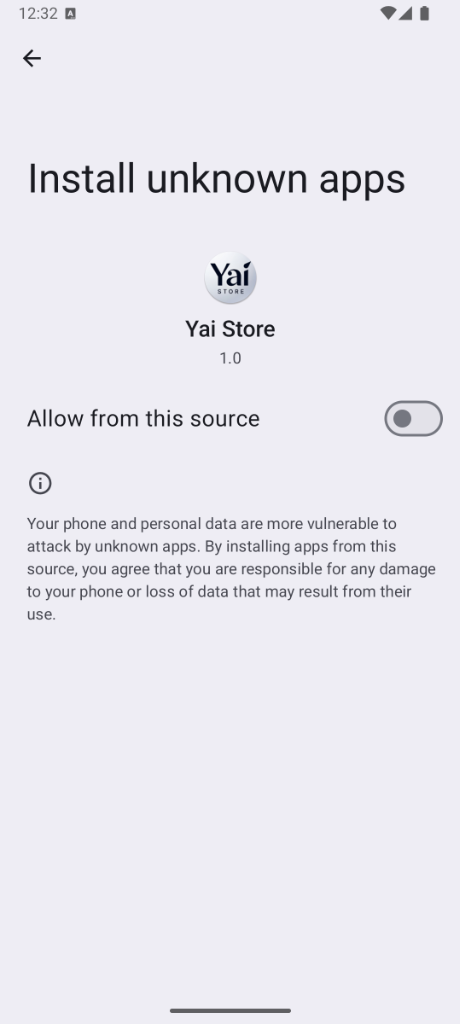
You'll be taken to the Install unknown apps settings page. Toggle the switch to Allow
from this source.
This grants Yai Store the permission to install apps on your device.
您将进入安装未知应用设置页面。打开开关以
Allow from this source (允许来自此来源)。这将授予 Yai Store 在您的设备上安装应用的权限。
Back to App Manager
返回应用管理器
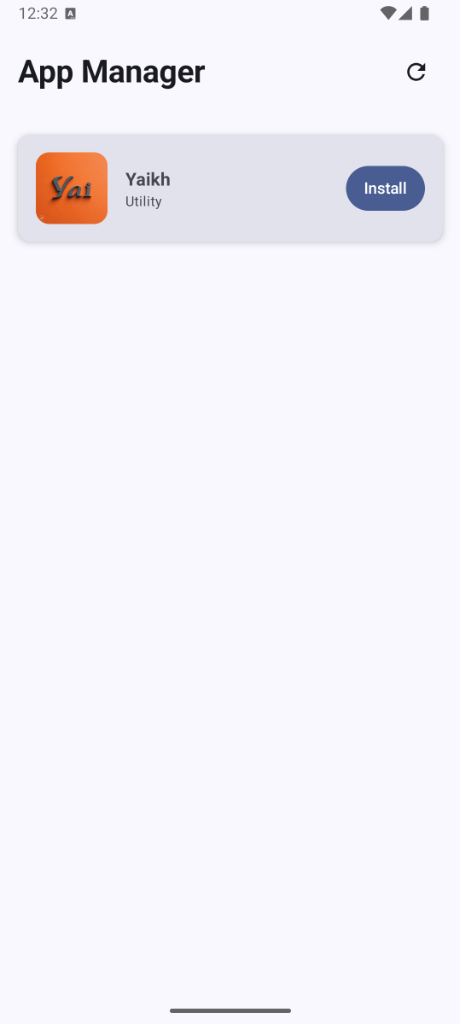
After granting permission, you'll return to the App Manager.
Now you can tap the Install button to proceed with the installation.
授予权限后,您将返回应用管理器。
现在您可以点击 Install (安装) 按钮继续安装。
View App Details
查看应用详情
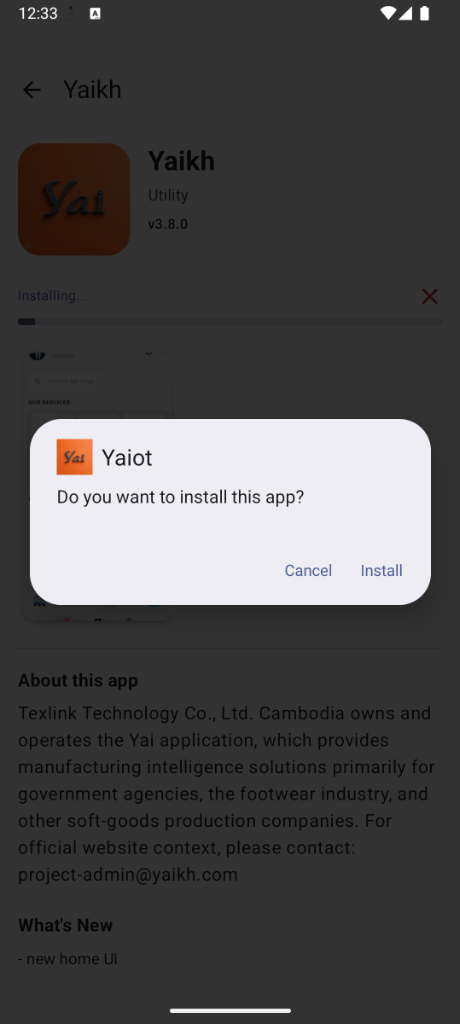
You'll see the complete app details page with app information, screenshots, and description.
Tap the Install button to begin the installation.
您将看到完整的应用详情页面,包括应用信息、截图和描述。
点击 Install (安装) 按钮开始安装。

Confirm Installation
确认安装
A final confirmation dialog will appear asking "Do you want to install this app?".
Tap Install to confirm and complete the installation.
将出现最后的确认对话框,询问“您想安装此应用吗?”。
点击 Install (安装) 确认并完成安装。
Installation Complete
安装完成
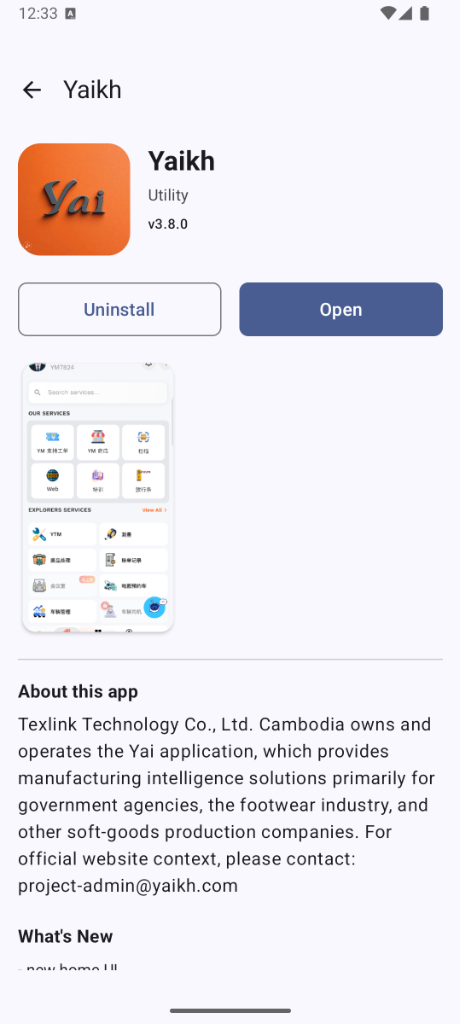
Congratulations! The app has been successfully installed. You'll now see
Uninstall and Open buttons.
Tap Open to launch the app.
恭喜!应用已成功安装。您现在将看到 Uninstall
(卸载) 和 Open (打开) 按钮。
点击 Open (打开) 启动应用。
Launch & Login
启动并登录
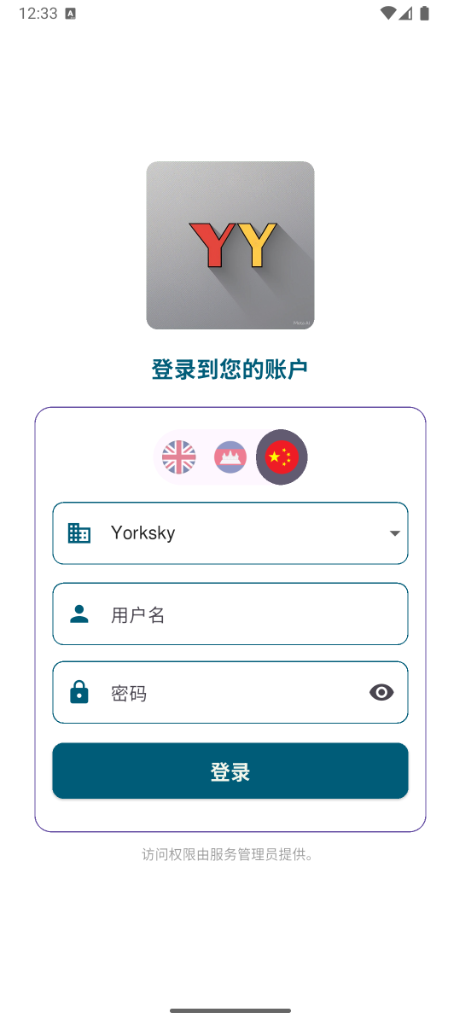
The app will open to the login screen. Select your preferred language (English, Khmer, or
Chinese) and enter your credentials.
Tap the login button to start using the app.
应用将打开到登录屏幕。选择您的首选语言(英语、高棉语或中文)并输入您的凭据。
点击登录按钮开始使用应用。